Connect Your Phone to a Portable HD LED Projector
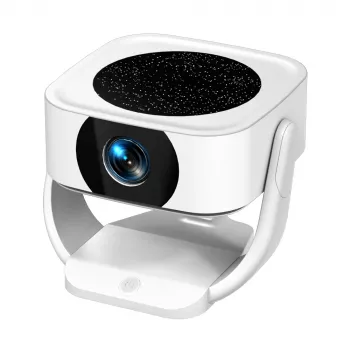
How to connect portable HD LED projector to phone?
Connecting a portable HD LED projector to a phone usually takes just a few minutes. The best method depends on what your projector supports: wireless casting (Wi-Fi), a direct cable (USB-C/Lightning to HDMI), or a streaming device plugged into the projector. Start by charging both devices, then confirm your projector input (HDMI, USB, or “Screen Mirroring”) and your phone’s connection options.
Best ways to connect (wireless and wired)
Option 1: Wireless screen mirroring (Wi‑Fi)
If your projector supports Wi‑Fi or Miracast/AirPlay-style casting, turn on the projector and open its wireless display or screen mirroring menu. On Android, use “Cast” or “Smart View” in Quick Settings; on iPhone, use Control Center > Screen Mirroring. Select the projector name, approve any pairing prompt, and your phone screen should appear within a few seconds.
Option 2: Wired connection (most reliable)
For the most stable connection (especially for streaming apps), use a cable. For Android with USB‑C, use a USB‑C to HDMI adapter that supports video output (DisplayPort Alt Mode) plus an HDMI cable to the projector. For iPhone, use an Apple Lightning Digital AV Adapter (or USB‑C Digital AV Adapter on USB‑C iPhones) and connect HDMI to the projector, then switch the projector to the correct HDMI input.
Option 3: Use a streaming stick
If casting is inconsistent, plug a streaming stick into the projector’s HDMI port, connect it to Wi‑Fi, and stream directly. This can also reduce lag compared to mirroring, since video plays from the streaming device rather than your phone.
For a deeper walkthrough on wireless features, inputs, and setup tips for modern portable models, see the full guide here: https://uniqualle.com/guide-portable-4k-wifi-led-projector-android-13/.
FAQ
Why is my projector not showing my phone screen even though it’s connected?
Double-check the projector is set to the correct input (HDMI or Screen Mirroring) and that your phone is casting to the projector name—not a different device. If you’re using a cable, confirm the adapter supports video output and try a different HDMI cable or port.













Leave a comment