Condenser Mic Setup: USB/XLR, Placement & Gain Tips
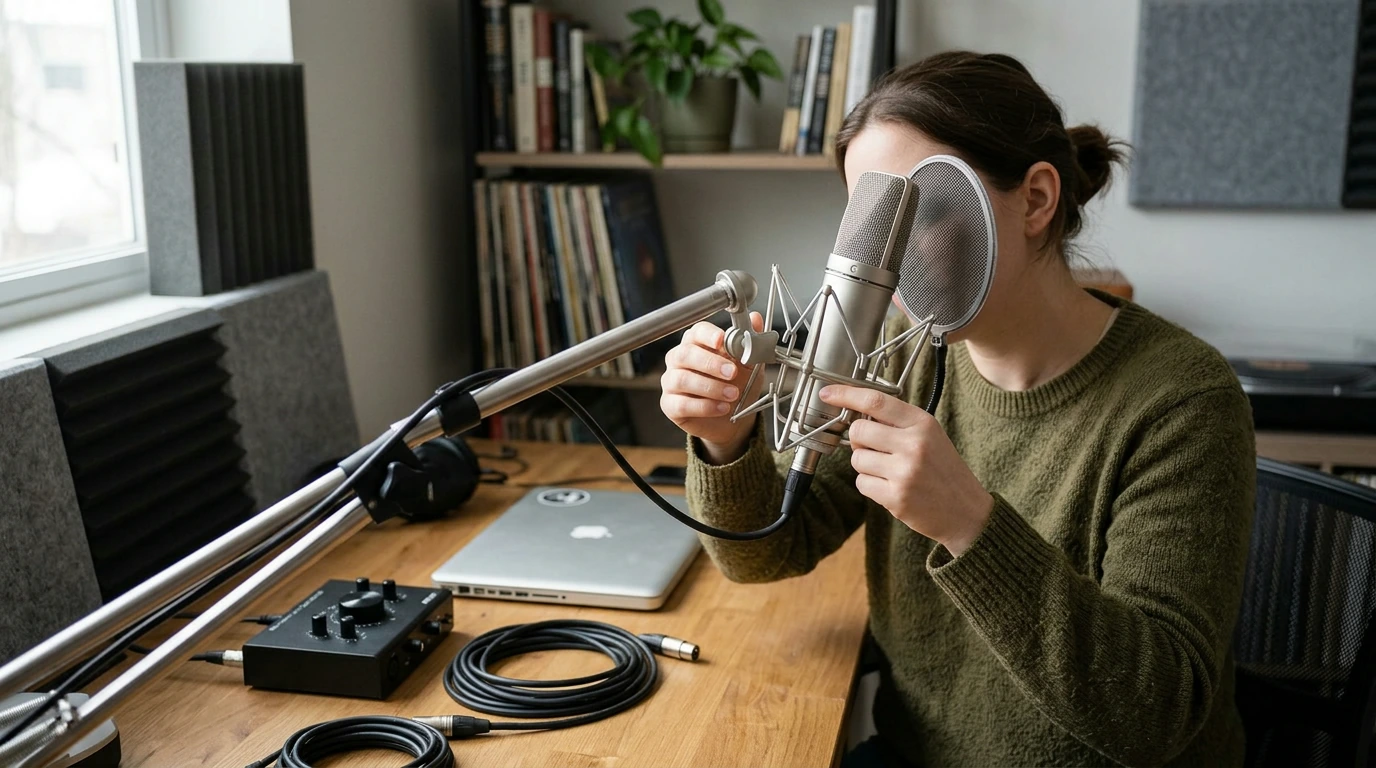
How do I set up my condenser microphone?
To set up a condenser microphone smoothly, start by choosing the right connection type (USB or XLR), then dial in clean levels and smart placement. Our team recommends doing the setup in this order so you avoid noisy recordings and clipping.
1) Connect it the right way (USB vs. XLR)
If you have a USB condenser mic, plug it directly into your computer using the included cable (avoid unpowered USB hubs when possible). If you have an XLR condenser mic, connect it to an audio interface with an XLR cable and turn on 48V phantom power on the interface (only after the mic is plugged in).
2) Put it on a stable mount and add a pop filter
Mount the mic on a stand or boom arm to reduce desk vibrations, and use a shock mount if you have one. Add a pop filter or foam windscreen to reduce plosives (the “P” and “B” bursts) and keep your sound consistent.
3) Position for clear voice and less room noise
Aim the mic at your mouth from about 6–10 inches away, slightly off-axis (angled a bit to the side) to soften harsh consonants. Keep the mic away from computer fans and reflective walls, and speak toward the correct side of the capsule (many side-address mics capture from the front, not the top).
4) Set pickup pattern (if your mic has it)
For streaming, calls, and podcasts, cardioid is usually the best starting point because it focuses on your voice and reduces sound from behind the mic. Omnidirectional is better for capturing a group, while bidirectional works for two people facing each other.
5) Set gain/volume and test before you record
In your recording app or system audio settings, select your mic as the input, then speak at your loudest real-world volume and raise gain until your voice is strong without peaking or distortion. If your mic has a headphone jack, monitor yourself to catch hum, hiss, or popping early.
For a deeper walkthrough on patterns, placement, and streaming/podcast settings, use our full guide: https://uniqualle.com/guide-3-pattern-usb-condenser-mic-setup-streaming-podcasts/.
FAQ
Why does my condenser mic pick up background noise?
Condenser mics are very sensitive, so distance and room acoustics matter a lot. Move closer to the mic, switch to cardioid if available, lower gain slightly, and reduce nearby noise sources like fans and reflective surfaces.













Leave a comment