Watch Movies on a Portable Projector: Easy Setup Guide
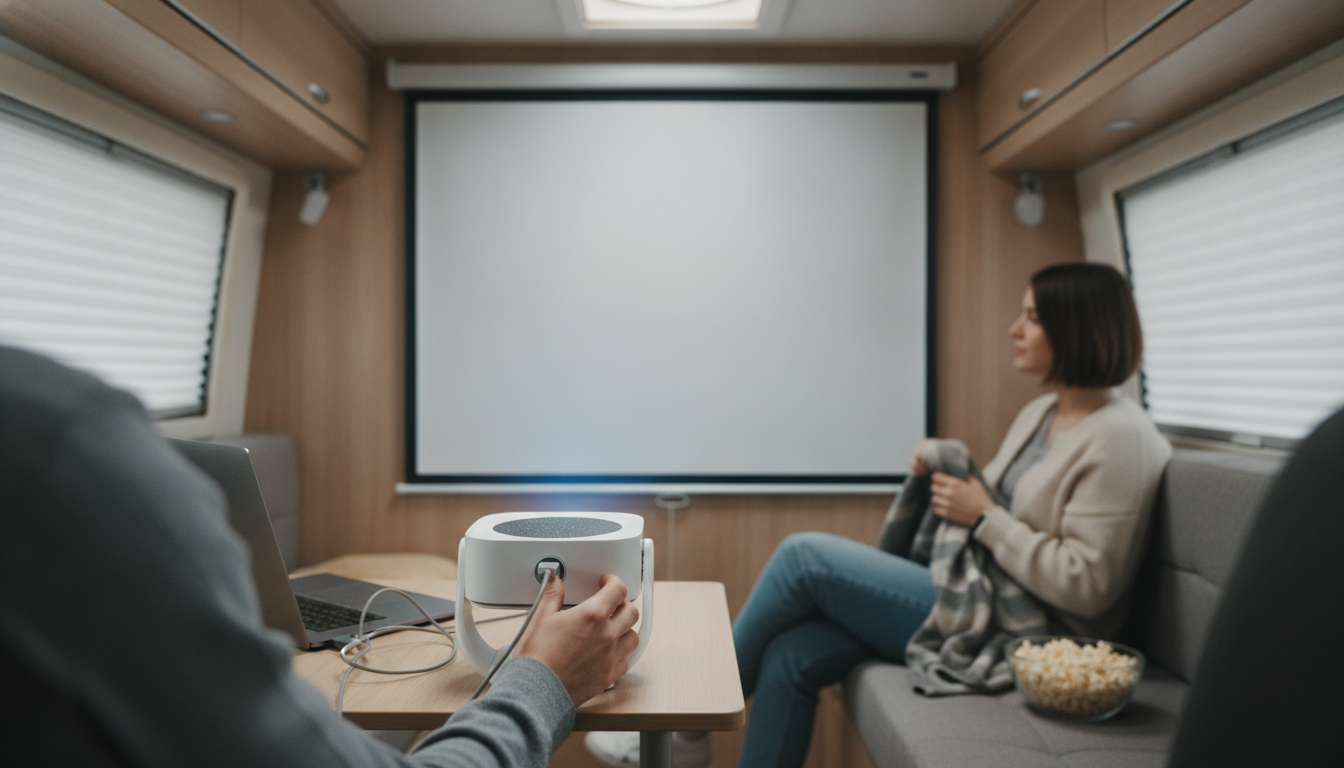
How to Watch Movies on a Portable Projector
Watching movies on a portable projector is mostly about three things: a stable video source, clean audio, and a good setup for focus and brightness. Whether you’re streaming, mirroring a phone, or playing files from a USB drive, the steps below help you get a smooth “big screen” experience anywhere.
1) Pick your movie source
Start by deciding how you’ll play the movie: a streaming app (Netflix, YouTube, etc.), a phone/tablet mirror, a laptop, or local files on a USB drive. Many portable projectors support HDMI for laptops/streaming sticks, plus wireless casting for phones. If your projector runs a modern smart OS (like Android-based models), you may be able to install streaming apps directly.
2) Connect your device (wired or wireless)
For the most reliable playback, use an HDMI connection from a laptop or streaming stick. If you want fewer cables, connect via Wi‑Fi screen mirroring or casting; make sure both devices are on the same network and keep them close to reduce lag. If you’re using a streaming stick, power it via the projector’s USB (if supported) or a small wall adapter/power bank.
3) Set up the screen and placement
Project onto a plain white wall, a pull-down screen, or a portable screen for better contrast. Place the projector on a steady surface, point it squarely at the screen, and adjust throw distance until the image size fits your space. Then use focus and keystone correction to sharpen the picture and straighten edges.
4) Optimize picture for your environment
Dim the lights as much as possible for stronger blacks and richer color. If your projector offers picture modes, choose “Movie” or “Cinema” for more natural tones. If the image looks washed out, reduce ambient light and consider a dedicated screen.
5) Add better sound
Built-in speakers are fine for casual viewing, but a Bluetooth speaker or a wired audio connection usually delivers clearer dialogue and fuller bass. Test audio sync when using Bluetooth, since some setups can introduce delay.
For a deeper walkthrough on features like Wi‑Fi, 4K support, and Android-based playback options, see this portable projector guide.
FAQ
Do portable projectors work with Netflix and other streaming apps?
Many do, either through built-in apps on smart projectors or by connecting a streaming stick via HDMI. If an app won’t run natively, using a Roku/Fire TV/Chromecast or a laptop over HDMI is typically the easiest fix.













Leave a comment