Set Up Your USB Condenser Mic for Clear Recording
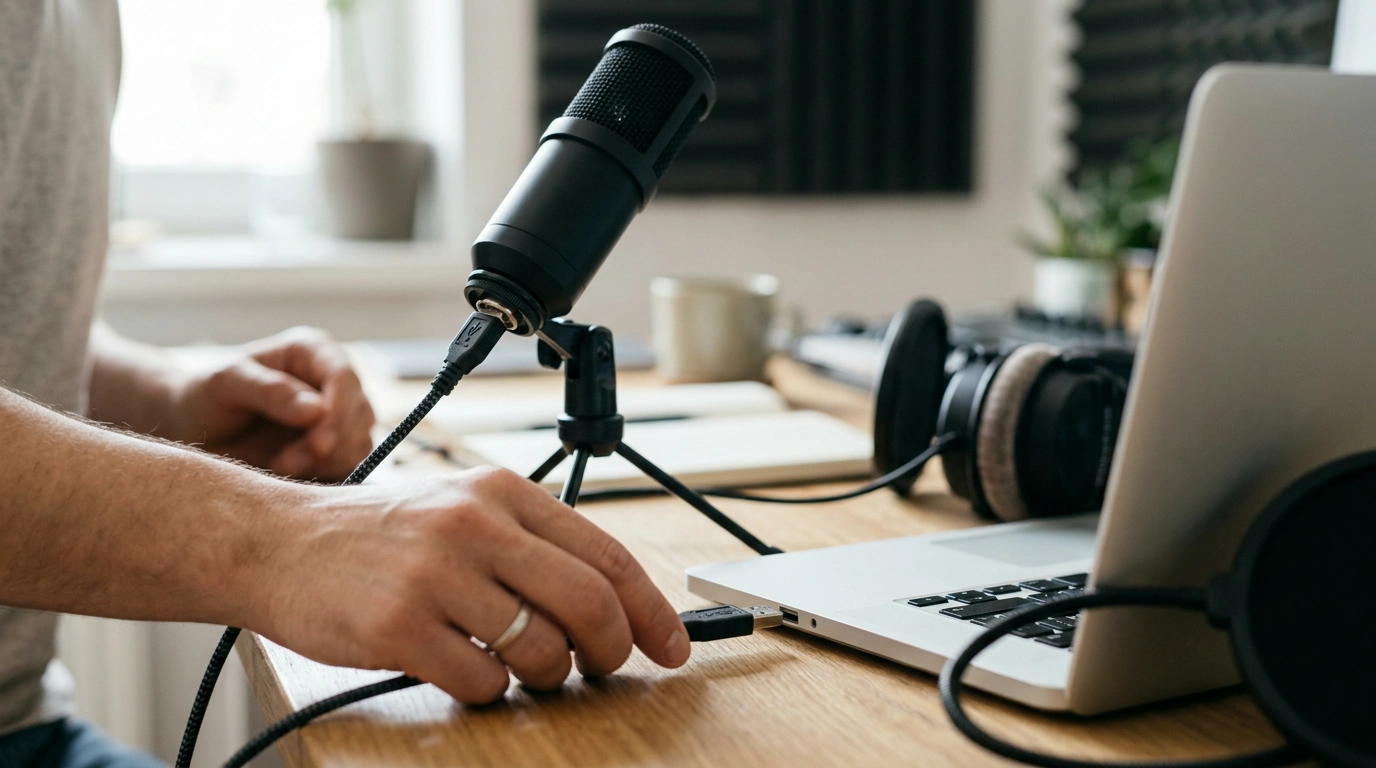
How to connect a USB condenser microphone?
Connect the microphone to your computer with its USB cable, select it as your input device, and check that your recording app is receiving sound. Most USB condenser microphones draw power from the computer, so you don’t need a separate audio interface or power supply.
1. Connect the microphone
Place the mic on a stable stand, then plug the correct end of its USB cable into the microphone and the other end into a USB port on your computer. If the mic uses USB-C and your computer has only USB-A ports, use a compatible data-capable cable or adapter. Connect directly to the computer when possible; a hub can sometimes cause power or connection issues.
>
2. Select it as your input device
On Windows, open Sound settings and choose the microphone under Input. On a Mac, go to System Settings, then Sound, and select it under Input. If you’re using a phone or tablet, check that the device and any adapter support USB audio.
3. Set levels and test
Open your recording, video-call, or streaming app and choose the USB mic as its audio input too. Speak at your usual volume while watching the input meter. Raise the input level if the signal is too quiet; lower it if the meter peaks or the sound distorts. Start with the mic about 6 to 12 inches from your mouth, and adjust its gain or position to get a clear signal without picking up too much room noise.
4. Troubleshoot if there’s no sound
Check that the cable is fully seated, the mic is not muted, and the app has permission to use the microphone. Try another USB port or cable, then disconnect and reconnect the mic. Close and reopen the recording app after changing the computer’s input selection. A standard USB mic does not need phantom power; don’t enable it through other equipment unless the manufacturer specifically instructs you to.
For guidance on mic patterns, placement, and a complete recording setup, see the USB condenser mic setup guide.
FAQ
How do I test whether my USB microphone is working?
Select it as the input device, speak into it, and watch the sound meter in your computer’s settings or recording app. Make a short test recording and play it back to confirm the audio is clear.













Leave a comment