How to Create a Budget in QuickBooks Online

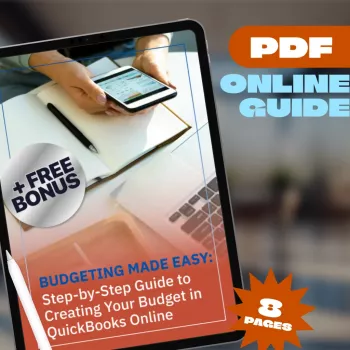
A useful business budget doesn’t have to start with a complicated spreadsheet. Our Budgeting Made Easy digital guide offers a practical starting point for organizing estimates in QuickBooks Online. Available from Uniqualle as a digital download for $8.99, it walks you through the budgeting process step by step.
Why a Business Budget Matters
A budget gives you a way to put your expectations for income and expenses in one place. Instead of looking only at what happened last month, you can plan for the months ahead and see how your estimates compare with actual results.
For example, you might expect sales to increase during a busy season while also planning for higher inventory or marketing costs. Setting those estimates alongside your actual numbers can help you spot differences and decide which expenses deserve a closer look.
A budget is not a guarantee of profit or cash flow. It is a planning tool that can support more informed decisions when you review and update it regularly. The U.S. Small Business Administration’s financial management resources provide additional guidance on keeping track of business finances.
Get Ready to Build Your Budget
Before opening the budgeting area, collect the figures and assumptions you’ll use. Prior income and expense records can provide a starting point, but they may not tell the whole story. Consider changes such as a new service, a supplier’s price increase, or a seasonal shift in demand.
Choose the period you want your budget to cover, such as a fiscal year, and consider how you’ll divide estimates across its months. A yearly total can be useful, but monthly estimates make it easier to account for expenses or sales that don’t occur evenly throughout the year.
Review your chart of accounts, too. Clear income and expense categories help you enter estimates consistently and compare them with the transactions you record later. If your categories need attention, take time to organize them before building the budget.
| Information | How It Helps |
|---|---|
| Past income and expenses | Provides a starting point for estimates |
| Expected business changes | Helps adjust estimates for the coming period |
| Budget period | Sets the timeframe for planning |
| Chart of accounts | Organizes estimates by income and expense category |
Create a Budget in QuickBooks Online
Once your information is ready, the basic process is to open the budgeting area, set up a budget for your chosen period, enter estimates by account and period, and save your work. As you enter figures, consider whether each amount reflects a steady monthly cost or an expense that occurs only at certain times.
For example, you may pay a software subscription each month but renew an annual insurance policy once a year. Entering those estimates in the appropriate periods can make your comparisons more useful than spreading every cost evenly.
Budgeting availability and navigation can vary by QuickBooks Online plan and interface. Consult QuickBooks Online Help and Support for current eligibility and exact steps. Our Budgeting Made Easy digital download provides structured, step-by-step guidance as you work through the process.
Before saving, review your entries for missing categories and amounts that appear out of place. You can also keep a separate note of important assumptions, such as an anticipated rate increase, so you remember the reasoning behind your estimates later.
Put Your Budget to Work
Set aside time each month to compare your budgeted amounts with actual results. Look for meaningful differences rather than treating every small variation as a problem. A higher expense might reflect a timing change, an unexpected purchase, or an increase that needs closer attention.
When you find a difference, ask what caused it and whether it is likely to continue. You might decide to review a recurring expense, revise an upcoming estimate, or simply note that a payment arrived earlier than expected. The goal is to use the comparison to guide your next decision.
Review your budget outside your usual schedule when circumstances change significantly. New contracts, changing costs, and shifts in demand can all make earlier assumptions less useful. Adjust estimates when appropriate, while remembering that a budget remains a forecast—not a promise of future results.
Choose a Practical Starting Point
If you want structured guidance as you prepare your budget, explore our Budgeting Made Easy: Step-by-Step Guide to Creating Your Budget in QuickBooks Online. The digital download is currently listed at $8.99.
Our team also offers products beyond business resources, including a lightweight 3L cycling backpack for running, hiking, and outdoor sports.
Before choosing, compare the product details with your daily routine, available space, care needs, and preferred setup. The strongest option is usually the one that fits the intended use clearly and remains simple to clean, store, and check before repeat use.
FAQ
Can I create a budget in QuickBooks Online?
Budgeting is available in certain QuickBooks Online plans. Check current Intuit guidance for plan eligibility and navigation.
What information should I gather before creating a budget?
Gather past income and expense figures, expected business changes, and the period your budget will cover. An organized chart of accounts also helps you group estimates by category.
How often should I review my business budget?
A monthly review is a useful starting point for comparing estimates with actual results. Review it again when significant business conditions change.















Leave a comment