RGB Wired Gaming Headset: PC & Console Setup Guide
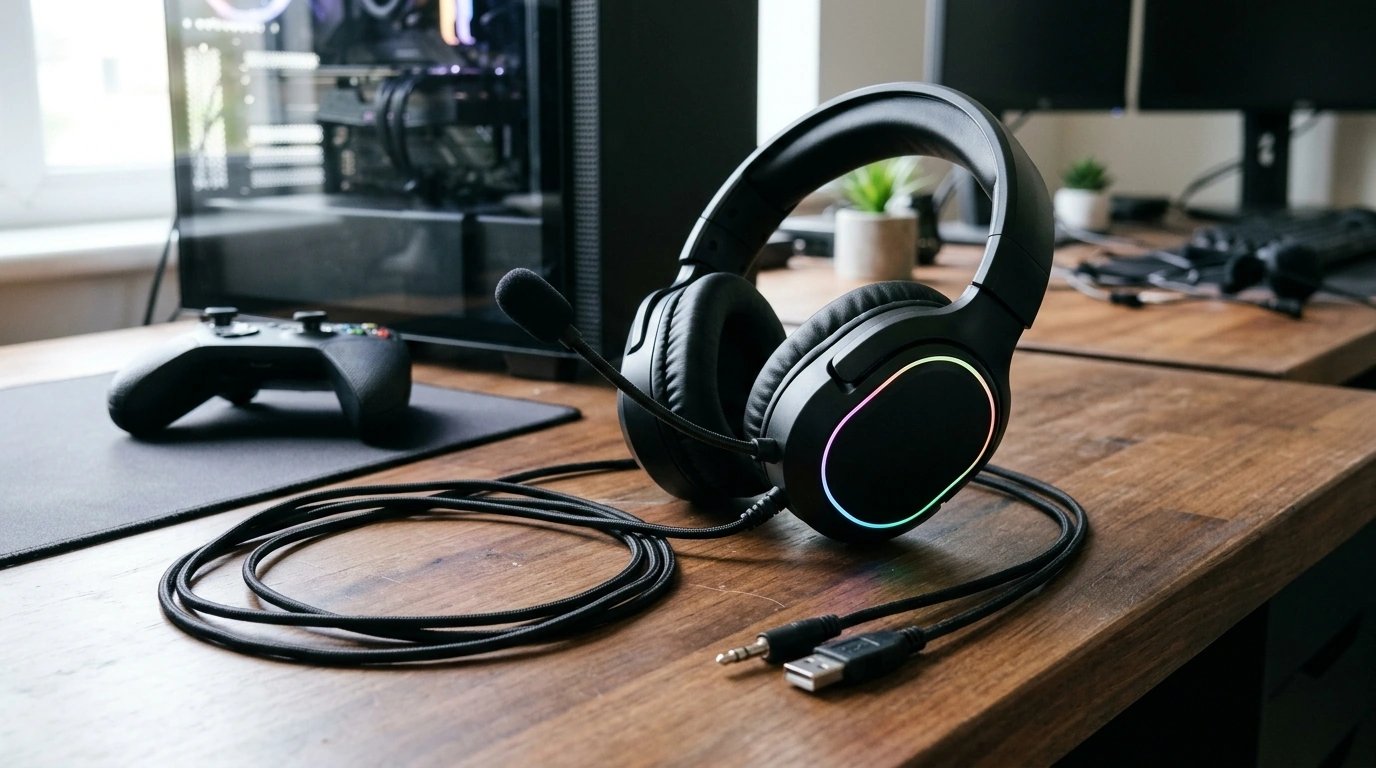
A wired headset keeps game audio and voice chat in one place, while RGB lighting adds color to your desk setup. Our RGB Wired Gaming Headset with Noise-Canceling Mic for PC & Console brings those features together. Before your first session, the most useful step is to make sure its connections suit the devices you use. For more guidance, see The 6 Best Gaming Headsets of 2026.
What This Headset Brings to Your Setup
If you play multiplayer games, using one headset for sound and chat can make your setup simpler. You can hear the game and speak to teammates without managing separate headphones and a desktop microphone. A wired connection also suits players who prefer plugging in to charging another device. For further reading, see Logitech H390 Wired Headset PC/Laptop Stereo ….
The noise-canceling microphone is intended to limit unwanted background pickup during chat. RGB lighting is a visual choice: it can complement the rest of your setup, but it will not change how the headset sounds or how clearly teammates hear you. We recommend deciding on the connection and chat features first, then treating the lighting as a finishing touch.
Check the Connection Before You Buy
“PC and console” describes where a headset is intended to be used, but it does not mean every device has the same port. Compare the headset’s listed audio connector and power requirements with your computer, controller, or console. In particular, do not assume that audio, microphone input, and RGB lighting all run through one connection.
Some desktop PCs have separate headphone and microphone jacks. If the headset uses a combined plug, those PCs may need a compatible splitter for both playback and chat. A laptop may instead have a single headset jack, so the right connection depends on its available inputs. On a console, confirm headset support for the controller or console you use, then review its audio settings.
Quick Connection Checklist
| Where you play | What to check | Why it matters |
|---|---|---|
| Desktop PC | Headphone and microphone inputs | Separate ports may call for a compatible splitter. |
| Laptop | Headset jack or other supported audio input | A matching connection helps both playback and chat work. |
| Console | Controller or console headset support | Audio and microphone options vary by system. |
| Any setup | RGB power requirements | Lighting may have a separate connection from audio. |
If you switch between PC and console, make this comparison for each device. A connection that handles sound on one system may not automatically provide microphone input or lighting on another.
Get Game Audio and Chat Working Together
For a first-use test, connect the headset and open your platform’s sound settings. Select the intended headset output for playback and the intended microphone input for chat. Play familiar game audio, then use a microphone test or voice-chat preview to see whether your voice registers at a usable level. This short test is easier to do before joining a match than while teammates are waiting.
Start at a moderate listening volume and raise it only as needed. If your platform offers a game-to-chat balance control, adjust it so instructions remain understandable without drowning out important game sounds. You can find platform-specific setting paths through Microsoft Support’s Windows help or PlayStation Support.
A noise-canceling microphone can help reduce background pickup, but it cannot guarantee a noise-free call. Place the mic near your mouth without putting it directly in the path of your breath. If teammates hear too much room noise, lower an overly sensitive input level and move away from nearby fans or speakers where practical. If your voice sounds faint, confirm the mic is selected and not muted before increasing its level.
Make It Comfortable for Longer Sessions
Take a moment to adjust the headset before settling into a long match. It should sit securely without distracting pressure. If warmth or pressure starts pulling your attention away from play, take a break and readjust rather than putting up with the discomfort.
Give the cable enough slack for natural head movement, but keep excess wire away from chair wheels and sharp desk edges. Think through the route from your seat to the PC or controller before you plug in; a cable that gets tugged every time you turn can interrupt an otherwise straightforward setup.
RGB can make the headset feel at home beside other lit accessories, but usable audio, clear chat, and a comfortable fit matter more during an actual session. If you take a gaming setup between locations, a separate everyday carry option such as our Lightweight 3L Cycling Backpack for Running, Hiking & Outdoor Sports may be worth considering for your other small essentials; confirm its capacity against what you plan to carry.
Who Is This Headset a Good Fit For?
Our team recommends reviewing the current details for the RGB Wired Gaming Headset with Noise-Canceling Mic for PC & Console, including its price and connection information, before you choose. Then you can get your audio and chat settings ready for your first session.
FAQ
Will the microphone work on both PC and console?
It depends on the headset connection and the inputs supported by your PC, controller, or console. Confirm compatibility, then select the headset as the microphone input in your platform’s settings.
Does RGB lighting need a separate connection?
It may. Do not assume lighting and audio share a connection; compare the headset’s listed power requirements with your setup.
What should I try if teammates cannot hear me?
Make sure the plug is seated, the correct microphone is selected, and mute is off. Adjust the input level if needed, then run a microphone test in your PC or console settings.














Leave a comment